Do Graphics Cards Come With Cables? What You Need To Know
So, you’re building a new PC or upgrading your setup. A big question is: do graphics cards come with cables? The short answer is, generally, no, they do not include display cables like HDMI or DisplayPort. Graphics cards primarily come with the card itself and sometimes a power adapter if needed. You will need to purchase your display cables separately to connect your monitor to your GPU.
We understand this can be a bit confusing when you’re buying PC parts. While the graphics card is the heart of your gaming or creative rig, it’s just one piece of the puzzle. Ensuring you have the right cables is just as important for getting your system up and running. Many builders overlook this, leading to an unexpected trip back to the store.
- Graphics cards usually don’t include display cables (HDMI, DisplayPort).
- You’ll need to buy these connection cables separately.
- Check your monitor’s ports and your graphics card’s output ports.
- Ensure you get the correct cable type for compatibility.
Let’s get into the details and make sure you have everything you need before you hit that “buy” button!
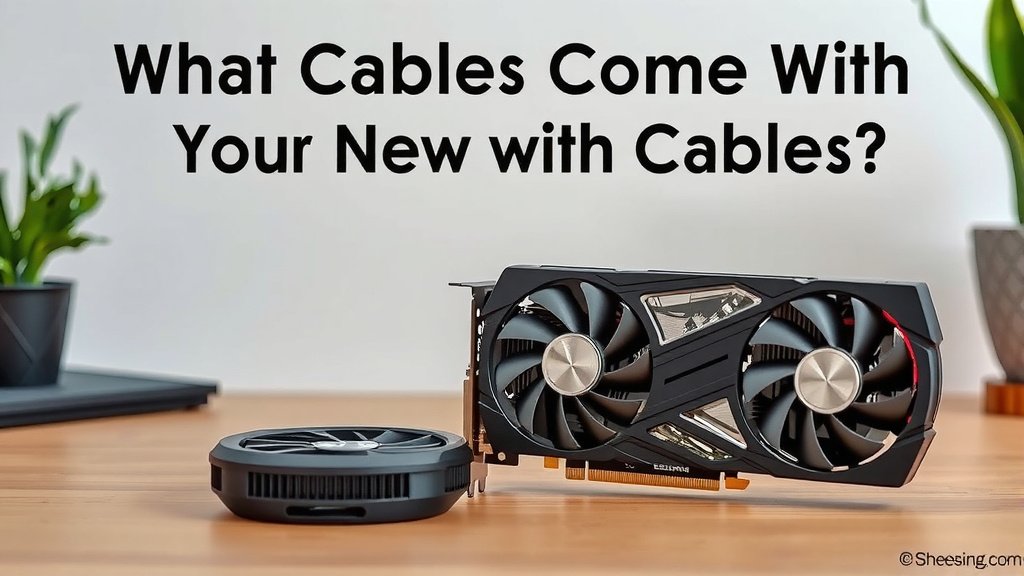
What Cables Come With Your New Graphics Card?
So, you’ve got your shiny new graphics card. That’s awesome! Now, the big question on your mind might be: what exactly comes in the box besides the card itself? It’s a common point of confusion for PC builders. We’ve researched this extensively, and here’s the straightforward answer: graphics cards generally do not come with display cables. Think HDMI, DisplayPort, or DVI cables – those are almost always separate purchases.
What you *will* typically find is the graphics card itself, maybe some documentation, driver discs (though these are often outdated), and sometimes mounting screws or adapters. If your card needs extra power, it might include a PCIe power adapter cable to connect from your power supply unit (PSU) to the GPU, but this is for power, not for your monitor.
Why Aren’t Display Cables Included?
It seems odd, right? Why wouldn’t they just toss in a cable? There are a few smart reasons behind this. Firstly, it helps keep the cost of the graphics card lower. Manufacturers can focus on delivering the best GPU performance without adding the expense of various cables that not everyone will need.
Variety of Monitor Connections
Think about it: monitors come with different input ports. Some have HDMI, some have DisplayPort, and older ones might even have DVI or VGA. Your graphics card also has specific output ports. To make sure you get the best picture quality and refresh rate, you need the right cable for the job. Including one generic cable might not be the best fit for everyone.
The Rise of Digital Standards
We’ve seen a big shift towards digital connections like DisplayPort and HDMI. These offer higher bandwidth, supporting better resolutions and refresh rates. For example, DisplayPort is often preferred for high-refresh-rate gaming monitors, while HDMI is more universally compatible with TVs and other devices. Because there isn’t one “standard” cable that fits all needs, manufacturers skip the guesswork and let you choose.
What Cables Do You Actually Need?
This is where you become the architect of your setup. You’ll need cables to connect your graphics card’s output ports to your monitor’s input ports. The most common types you’ll encounter are:
- HDMI (High-Definition Multimedia Interface): Very common, supports video and audio. Good for general use and gaming, especially if your monitor or TV also has HDMI.
- DisplayPort: Often considered the best choice for PC gaming. It typically offers higher refresh rates and resolutions than HDMI, and supports features like G-Sync and FreeSync for smoother gameplay.
- DVI (Digital Visual Interface): An older standard, but still found on some older monitors and GPUs. Usually supports video only and may have lower resolution/refresh rate limits.
- USB-C (with DisplayPort Alt Mode): Increasingly seen on newer, high-end graphics cards and monitors. Can carry video, data, and power over a single cable.
How to Determine the Right Cable Type
Here’s your action plan to figure out which cable you need:
- Check Your Graphics Card Ports: Look at the back of your new graphics card. What types of ports does it have? You’ll usually see labels next to them.
- Check Your Monitor Ports: Examine your monitor. What input ports does it offer?
- Match Them Up: The goal is to find a cable that has the correct connector on both ends. For instance, if your GPU has DisplayPort outputs and your monitor has DisplayPort inputs, a DisplayPort cable is your go-to.
Ensuring Compatibility and Performance
It’s not just about matching the shape of the connector. The version of the cable matters for performance. For example, an older HDMI 1.4 cable won’t support 4K resolution at 60Hz, whereas an HDMI 2.1 cable will. Similarly, DisplayPort 1.4 supports higher resolutions and refresh rates than older versions. If you’re aiming for 144Hz gaming or 4K resolution, make sure your cable (and your monitor and GPU) supports those standards.
What About Power Cables?
As mentioned, your graphics card might need extra power directly from your power supply. Most modern, mid-range to high-end GPUs require one or more 6-pin or 8-pin PCIe power connectors. These are usually included with your power supply unit (PSU), not the graphics card. So, when you buy a PSU, ensure it has enough of these connectors for your GPU.
Some cards come with a PCIe power adapter. This is a small cable that can split a single 8-pin PSU connector into two, or convert two 4-pin Molex connectors into a single 8-pin PCIe connector. While useful in a pinch, it’s generally best practice to use the direct native PCIe cables from your PSU if possible. This provides the most stable power delivery (NVIDIA).
A Quick Cable Checklist for Your Build
Before you complete your purchase, here’s a handy checklist to make sure you don’t forget anything:
- Confirm GPU output ports: (e.g., DisplayPort, HDMI)
- Confirm Monitor input ports: (e.g., DisplayPort, HDMI)
- Purchase the correct display cable(s): Based on the above.
- Ensure cable version supports desired resolution/refresh rate: (e.g., DP 1.4, HDMI 2.1)
- Verify your Power Supply has enough PCIe power connectors: (If your GPU requires them)
Where to Buy Your Cables
You can find these cables at most electronics retailers, online marketplaces, and dedicated PC component stores. When choosing, look for cables that match the required specifications for your setup. Reputable brands often offer better build quality and support for the latest standards.
Don’t underestimate the importance of a good quality cable. A cheap, poorly made cable can lead to signal issues, lower refresh rates, or even intermittent connection problems. It’s a small component that plays a big role in your overall visual experience.
Conclusion
So, you’ve learned that your new graphics card likely won’t include display cables. This means you’ll need to plan ahead and purchase your HDMI or DisplayPort cables separately. Remember to match the ports on your GPU with those on your monitor to ensure compatibility. Don’t forget to check your power supply for the correct PCIe connectors if your graphics card needs auxiliary power. Double-checking these small details before buying ensures a smoother PC building experience and gets you gaming or creating sooner!
Frequently Asked Questions
Do I need to buy a special cable for my graphics card?
Generally, no. You need a standard display cable like HDMI or DisplayPort that matches the ports on both your graphics card and your monitor. Check what ports your devices have to pick the right cable.
Can I use any HDMI cable with my graphics card?
While most HDMI cables will connect, the version of the HDMI cable matters for performance. For higher resolutions (like 4K) and refresh rates (like 120Hz or 144Hz), you’ll need a newer HDMI 2.0 or HDMI 2.1 cable. Older cables might limit your display’s capabilities.
What’s the difference between DisplayPort and HDMI for gaming?
DisplayPort is often preferred for PC gaming because it typically supports higher refresh rates and resolutions. It also has better support for adaptive sync technologies like G-Sync and FreeSync, leading to smoother gameplay.
My graphics card has USB-C ports. Can I use those for my monitor?
Some modern graphics cards and monitors support video output via USB-C, often referred to as “DisplayPort Alt Mode.” If both your GPU and monitor have compatible USB-C ports, you can use a single USB-C cable for video, and sometimes even data and power.
What if my power supply doesn’t have the right power connectors for my GPU?
If your GPU requires extra power (usually 6-pin or 8-pin PCIe connectors) and your PSU lacks them, you will need to buy a new, compatible power supply. Avoid using uncertified adapters as they can be unreliable or even damage your components.
![10 Best 1440p Gaming Gpu [2026]](https://spsolutionscare.com/wp-content/uploads/2026/08/10-best-1440p-gaming-gpu-2026-featured-768x432.jpg)
![10 Best Amd Card Brands [2026]](https://spsolutionscare.com/wp-content/uploads/2026/08/10-best-amd-card-brands-2026-featured-768x432.jpg)