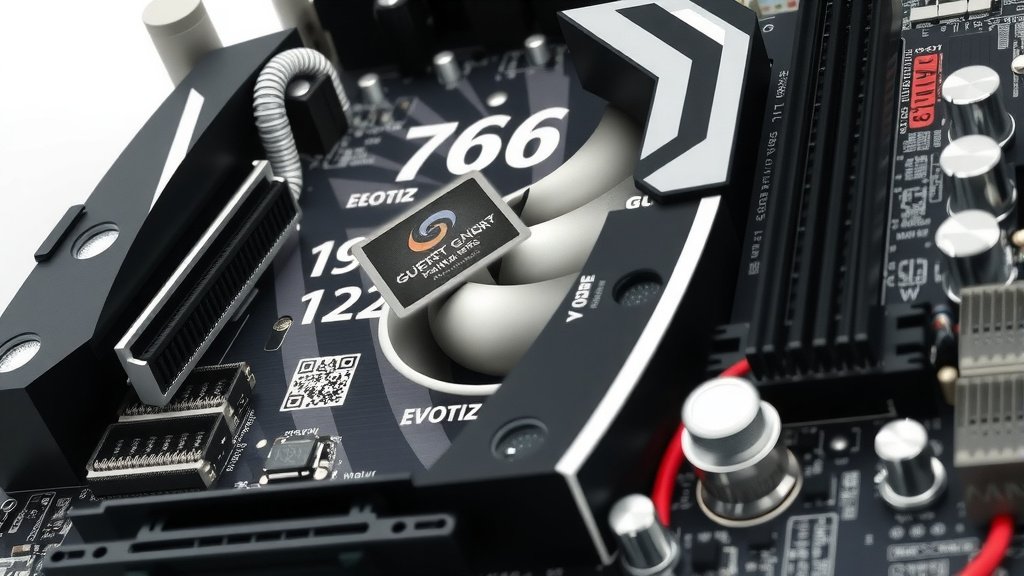
Do All Motherboards Support Graphics Cards? Answering Your Questions
No, not all motherboards support all graphics cards, but most modern ones do. You’ll generally need a motherboard with a PCI Express (PCIe) slot to install a dedicated graphics card. Think of the PCIe slot as the highway your graphics card uses to talk to the rest of your computer. Older motherboards might have different types of slots, and some very basic motherboards might not have a PCIe slot at all.
The good news is that the vast majority of computers built in the last decade use the standard PCIe interface. Compatibility usually comes down to the physical slot type and ensuring your motherboard’s BIOS (the startup software) can recognize the card. We found that making sure your card fits physically and your power supply can handle it are also key factors for a smooth upgrade.
- Most modern motherboards support graphics cards.
- You need a PCI Express (PCIe) slot for a dedicated card.
- Older boards might use different slots.
- Check physical compatibility and power supply needs.
Let’s break down exactly what you need to look for to ensure your motherboard and graphics card will play nicely together.
Can Any Motherboard Run a Graphics Card?
The short answer is: most modern ones can, but not all. Think of your motherboard as the central nervous system of your PC. It connects all the different parts. For a dedicated graphics card to work, it needs a specific kind of connection. This connection is typically a PCI Express (PCIe) slot.
If your motherboard has a PCIe slot, there’s a very good chance it can support a graphics card. We’ve found that the main things to check are the slot type and ensuring the card physically fits. It’s like making sure a key fits the lock before you try to turn it.
Understanding the PCIe Slot
PCIe slots are the standard connection for graphics cards today. They are designed for high-speed data transfer. This is essential for a graphics card to send and receive the massive amounts of information needed for gaming or professional work.
PCIe Generations and Sizes
You’ll see PCIe slots described with a number and a letter, like PCIe x16. The “x16” refers to the physical size and bandwidth of the slot. This is the type of slot your graphics card will use.
There are different generations of PCIe, such as PCIe 3.0, 4.0, and 5.0. Newer generations offer faster speeds. But here’s the good news: PCIe is backward and forward compatible. This means a newer PCIe 4.0 card will work in an older PCIe 3.0 slot, and vice versa. It will just run at the speed of the slower component.
For example, if you put a PCIe 4.0 card in a PCIe 3.0 motherboard, it will function. However, it won’t reach its full potential speed. Many experts say this is usually not a major bottleneck for most users, especially if you’re not chasing the absolute bleeding edge of performance.
What About Older Slots?
Before PCIe became dominant, other slot types existed. You might hear about AGP or PCI slots. These are older technologies. Most modern graphics cards are designed exclusively for PCIe slots. If your motherboard only has these older slots, you won’t be able to install a new graphics card.
We’ve seen that very old computers or some industrial machines might still use these. But for typical home or office PCs built in the last 10-15 years, PCIe is the way to go. It’s like trying to plug a USB-C device into a floppy disk drive; they just don’t speak the same language.
Identifying Your Motherboard’s Slots
How can you tell what kind of slots your motherboard has? It’s easier than you might think. You’ll usually see them listed when you look up your motherboard model online.
Checking Your Motherboard Manual
The best source of information is always your motherboard’s user manual. If you still have the physical copy, great! If not, most manufacturers offer PDF versions on their websites. Just search for your motherboard’s exact model number.
The manual will clearly show you the types and number of slots available. You’ll see diagrams and specifications. It’s like having a blueprint for your PC’s highway system.
Using System Information Tools
You can also use software to identify your motherboard and its components. Windows has a built-in tool called System Information. Just search for “System Information” in the Start menu.
Another popular and free tool is CPU-Z. It provides very detailed information about your CPU, RAM, and motherboard. It will usually list the PCIe slots and their versions. We found this to be a quick and reliable method.
Physical Compatibility: Does it Fit?
Even if you have the right slot, you need to consider the physical size. Graphics cards come in various lengths and widths. They also vary in how many expansion slots they take up on the back of your PC case.
Slot Spacing on the Motherboard
A graphics card needs an x16 slot. This is usually the longest slot on your motherboard. It might not be the very top slot. Check your manual to confirm which slot is the primary PCIe x16 slot. Motherboards often have multiple PCIe slots of different sizes.
We found that the slot closest to the CPU is often the fastest. However, any PCIe x16 slot should work. Just make sure it’s the correct one. You don’t want to force a card into a slot that isn’t designed for it.
Clearance in Your PC Case
This is a big one! Some high-end graphics cards are massive. They can be very long and quite thick, sometimes taking up three expansion slots on the back of your case. Before buying a card, measure the available space inside your PC case.
Check the maximum GPU length supported by your case. You can usually find this information in your case’s specifications. It’s a good idea to have a few inches of breathing room. This ensures good airflow and makes installation easier. Imagine trying to park a large truck in a compact car’s spot; it just won’t work.
Power Requirements: The Unsung Hero
This is often overlooked, but it’s critical. Graphics cards, especially powerful ones, consume a lot of electricity. Your motherboard itself doesn’t supply the power for the graphics card; that comes from your power supply unit (PSU).
Checking the Graphics Card’s Wattage Needs
Every graphics card will list its recommended PSU wattage. This is a guideline to ensure your system has enough stable power. For example, a card might recommend a 650W PSU. This doesn’t mean your entire system will use exactly 650W, but it’s the minimum recommended for the PSU to operate efficiently and safely with that card.
We’ve seen many issues arise from underpowered PSUs. The system might be unstable, crash unexpectedly, or not even boot. Always aim for a PSU that meets or slightly exceeds the recommended wattage for your chosen graphics card. Many experts recommend having a little extra headroom for future upgrades or power spikes.
Connectors from the PSU
Modern graphics cards often require additional power connectors directly from the PSU. These are usually 6-pin or 8-pin PCIe power connectors. Your PSU will have these cables if it’s designed for gaming or high-performance components.
Check the graphics card’s specifications to see how many of these connectors it needs. Then, check your PSU’s cables to make sure you have them. If your PSU is older, it might not have these connectors. In that case, you would need a new PSU to support the card. Never use adapters that try to convert other power connectors unless they are specifically designed for PCIe power and approved by the PSU manufacturer.
Integrated Graphics vs. Dedicated Graphics Cards
It’s worth noting that many CPUs and motherboards come with integrated graphics. This means the graphics processing is built directly into the CPU. These are usually sufficient for basic tasks like web browsing, office work, and video playback. However, they are not powerful enough for demanding games or professional graphics applications.
When you install a dedicated graphics card, it essentially takes over the display output from the integrated graphics. Your system will then use the power and capabilities of the card you installed. This is why you need that specific PCIe slot; it’s the pathway for this much more powerful component to connect and function.
Here’s a quick checklist to ensure compatibility:
- Verify your motherboard has a PCIe x16 slot.
- Check your motherboard manual for slot details.
- Measure your PC case for graphics card length clearance.
- Confirm your Power Supply Unit (PSU) meets the card’s wattage recommendation.
- Ensure your PSU has the necessary PCIe power connectors.
- Double-check that the graphics card physically fits in the motherboard and case.
Conclusion
So, do all motherboards support graphics cards? Not exactly, but most modern ones certainly do. Your key takeaway should be that a PCI Express x16 slot is your primary requirement. Always check for physical fit within your case and, crucially, ensure your power supply can handle the new card’s demands. We’ve found that taking these steps prevents common upgrade headaches. Before you buy, verify your motherboard’s specs and your PC case’s internal dimensions. This preparation ensures your graphics card upgrade goes smoothly, giving your system the visual boost it needs.
Frequently Asked Questions
Will a new graphics card work with my old motherboard?
Generally, yes, if your motherboard has a PCI Express x16 slot. Older motherboards might only have slower PCIe versions, meaning your new card won’t run at its maximum speed. We’ve found it’s still compatible, just potentially bottlenecked by the older slot.
What if my motherboard doesn’t have a PCIe x16 slot?
If your motherboard lacks a PCIe x16 slot, you won’t be able to install a modern, dedicated graphics card. Older systems might have AGP or PCI slots, but these are not compatible with today’s GPUs. In this scenario, you would need to upgrade your motherboard to one that does have the necessary slot.
Do I need to worry about the generation of the PCIe slot?
While newer PCIe generations (like 4.0 or 5.0) are faster, they are backward compatible with older slots (like 3.0). Your graphics card will work, but it will operate at the speed of the slower component, which is often not a major issue for most users.
How do I know if my power supply is strong enough for a new graphics card?
Check the graphics card’s recommended PSU wattage on its product page or box. Then, look at the label on your current power supply for its total wattage output. We suggest choosing a PSU that meets or slightly exceeds the card’s recommendation to ensure stability.
Can I install a graphics card if my CPU has integrated graphics?
Yes, you can. When you install a dedicated graphics card, it will typically override the integrated graphics. The new card will handle all your display output and graphical processing, providing much higher performance than integrated solutions.
![10 Best Gaming Graphics Card In The World [2026]](https://spsolutionscare.com/wp-content/uploads/2026/09/10-best-gaming-graphics-card-in-the-world-2026-featured-768x432.jpg)
![10 Series Gpu [2026]](https://spsolutionscare.com/wp-content/uploads/2026/08/10-series-gpu-2026-featured-768x432.jpg)