Does Your GPU Need Its Own Power Supply? Explained
Yes, your graphics card (GPU) absolutely needs its own dedicated power, and it’s a super important detail for keeping your computer running smoothly. Without enough power, your GPU might struggle to perform or even cause system instability.
Think of your GPU as the powerhouse for visuals. It draws a lot of energy, often much more than your motherboard can provide alone. That’s why manufacturers design them with separate power connectors straight from your power supply unit (PSU).
- Your GPU needs its own power.
- It gets this power directly from your PSU.
- This ensures it has enough juice to run demanding tasks.
- Not enough power can lead to performance issues or crashes.
Let’s walk through exactly why your GPU needs its own power and how to make sure it’s getting what it needs to keep those pixels flying!
Why Your Graphics Card Needs Its Own Power Source
You might be wondering if your graphics card, that essential piece of your PC for gaming and creative work, really needs its own dedicated power. The short answer is a resounding yes! Think of it like this: your computer’s motherboard provides the basic electricity to run everything. But your GPU is a power-hungry beast, especially when it’s working hard. It needs way more juice than the motherboard can reliably supply on its own. This is why you see those extra cables connecting directly from your power supply unit (PSU) to your graphics card.
Understanding the Power Demands of a GPU
Graphics cards are responsible for rendering all those stunning visuals you see on your screen. This involves incredibly complex calculations done at lightning speed. Processing all that data requires a massive amount of electricity. When you’re gaming, editing videos, or running demanding simulations, your GPU is firing on all cylinders. It draws a significant amount of power, often peaking well beyond what a standard motherboard slot can offer.
The Role of the Motherboard’s Power
Your motherboard provides a baseline power supply to various components, including your GPU through the PCI Express (PCIe) slot. This slot is designed to deliver a certain amount of wattage, typically around 75 watts for most PCIe x16 slots. This might be enough for very basic graphics needs, like casual web browsing or displaying your desktop. However, it’s nowhere near enough for anything that truly pushes your graphics card.
Why the PCIe Slot Isn’t Enough
We found that modern GPUs, even mid-range ones, can consume hundreds of watts under load. Trying to pull that much power through the PCIe slot would overload it. It could cause thermal issues, potentially damage the motherboard, or simply not work at all. That’s why dedicated power connectors are a must-have for any graphics card that’s more than just a basic display adapter.
The Direct Connection: PSU to GPU
This is where your power supply unit (PSU) steps in. Your PSU is the heart of your PC’s power system. It takes the AC power from your wall outlet and converts it into the stable DC power your components need. For a graphics card, the PSU provides this power directly through specialized PCIe power cables. You’ll usually see these cables coming out of your PSU and plugging into your GPU.
Types of PCIe Power Connectors
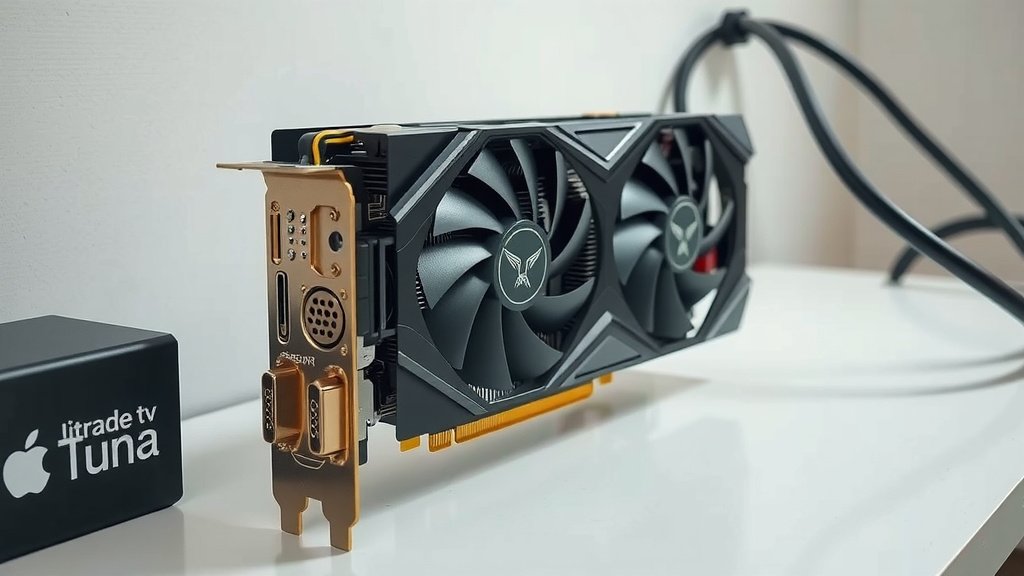
You’ll typically encounter a few different types of PCIe power connectors. The most common are 6-pin and 8-pin connectors. Some high-end GPUs might even require two or three of these connectors to draw enough power. We found that an 8-pin connector can deliver up to 150 watts, while a 6-pin connector delivers about 75 watts. Combining these with the power from the PCIe slot gives your GPU the total wattage it needs to perform.
Matching Your PSU to Your GPU’s Needs
It’s super important that your PSU has enough wattage overall and also has the correct number and type of PCIe power connectors your GPU requires. If your PSU is underpowered, or if you don’t have the right cables, your graphics card simply won’t get the electricity it needs. This can lead to all sorts of frustrating problems. Our guide on how to choose the right PSU for your GPU covers PSU wattage and connectors.
Consequences of Insufficient GPU Power
So, what happens if your graphics card isn’t getting enough power? It’s not usually a sudden “pop” and smoke situation, thankfully. Instead, you’ll likely experience performance issues or system instability. Many users report stuttering in games, graphical glitches, or even unexpected shutdowns and restarts. It’s like trying to run a marathon on a tiny sip of water – you’re just not going to get very far, and you might collapse along the way.
Performance Degradation
When a GPU is starved for power, it can’t operate at its intended speeds. This means your frame rates in games will drop significantly. You might see your GPU clock speeds throttled back to prevent it from drawing too much power. This results in a much less enjoyable visual experience. We found that even a slight power deficit can lead to noticeable performance drops, especially in demanding applications.
System Instability and Crashes
This is the more serious consequence. If the GPU tries to draw more power than the PSU can supply, or more than the available connectors can handle, it can destabilize your entire system. Your PC might freeze, requiring a hard reset. In worst-case scenarios, you could experience random restarts or even blue screen errors (BSODs). It’s your system’s way of saying, “I can’t handle this!”
Component Damage (Rare but Possible)
While less common with modern components thanks to built-in safety features, pushing hardware beyond its designed limits can, over time, lead to premature wear or even damage. It’s always best to ensure your components are operating within their specified power envelopes. Many hardware guides recommend having a PSU with at least 20-30% headroom beyond your system’s estimated peak draw (Tom’s Hardware).
How to Ensure Your GPU Gets Enough Power
Getting this right is straightforward once you know what to look for. It’s all about selecting the right components and making sure they’re connected properly. You don’t want to build a powerful gaming rig only to have it hobbled by insufficient power.
1. Check Your GPU’s Power Requirements
Before you even buy a graphics card, check its specifications. Manufacturers will clearly list the recommended PSU wattage and the type of PCIe power connectors it needs. This information is usually on the product page or the box itself.
2. Assess Your Power Supply Unit (PSU)
Look at your PSU. Does it have enough wattage to meet the recommended amount for your GPU, plus the needs of your other components (CPU, RAM, drives, etc.)? Crucially, does it have the required 6-pin or 8-pin PCIe power connectors available? You can check your PSU to ensure it meets the requirements for your GPU.
3. Use the Correct Cables
Always use the PCIe power cables that came with your PSU. These are specifically designed for the task. Do not try to adapt other types of cables, as this can be very dangerous and damage your components.
4. Connect Directly from the PSU
Ensure the PCIe power cables are plugged directly into your graphics card from the PSU. Avoid using adapters that split power from other sources if possible, as they may not provide stable or sufficient power.
5. Consider a PSU Upgrade if Necessary
If your current PSU doesn’t meet the requirements, the smart move is to upgrade to a more powerful and reliable unit. This is an investment in the stability and longevity of your entire PC.
6. Double-Check Connections
Once everything is installed, give the PCIe power connectors a gentle push to ensure they are fully seated in the GPU. Loose connections can also cause power delivery issues.
Conclusion
So, you’ve learned that your GPU absolutely needs its own power connection. This direct link from your PSU ensures your graphics card gets the substantial energy it requires for demanding tasks. Trying to skimp on power can lead to frustrating performance drops or even system instability. Always check your GPU’s specifications and make sure your PSU can handle the load and has the right connectors. Your next step should be to review your current PSU’s wattage and available PCIe connectors against your GPU’s requirements. If there’s a mismatch, consider upgrading your PSU for a stable and powerful visual experience.
Frequently Asked Questions
Can I power my GPU using only the motherboard slot?
Generally, no. While the motherboard’s PCIe slot provides some power (around 75 watts), it’s insufficient for most modern graphics cards. These cards are designed to draw significantly more power directly from the PSU via dedicated connectors.
What happens if my PSU doesn’t have enough PCIe power connectors for my GPU?
You cannot power the GPU adequately. Attempting to use adapters from other sources can be unstable and risky. You’ll need to either replace your PSU with one that has the correct connectors or, if your PSU has sufficient wattage but lacks connectors, you might look into modular PSU cables if your PSU model supports them.
How do I know if my PSU is powerful enough for my new GPU?
Check the GPU manufacturer’s website or the product packaging. They will list a recommended PSU wattage for the card. Compare this to your PSU’s total wattage rating, and ensure it has enough headroom for your other components like the CPU.
Can a weak PSU damage my graphics card?
While modern components have safety features, a consistently underpowered PSU can lead to unstable power delivery. This might cause performance issues or, in rare cases, stress components and lead to premature wear or failure over time.
Do all GPUs need external power connectors?
No. Very low-power or entry-level graphics cards designed for basic display output might only use the power supplied by the motherboard’s PCIe slot. However, any GPU intended for gaming, content creation, or other demanding visual tasks will require external power connectors.

![10 Best Gaming Video Card Under $150 [2026]](https://spsolutionscare.com/wp-content/uploads/2026/09/10-best-gaming-video-card-under-150-2026-featured-768x432.jpg)