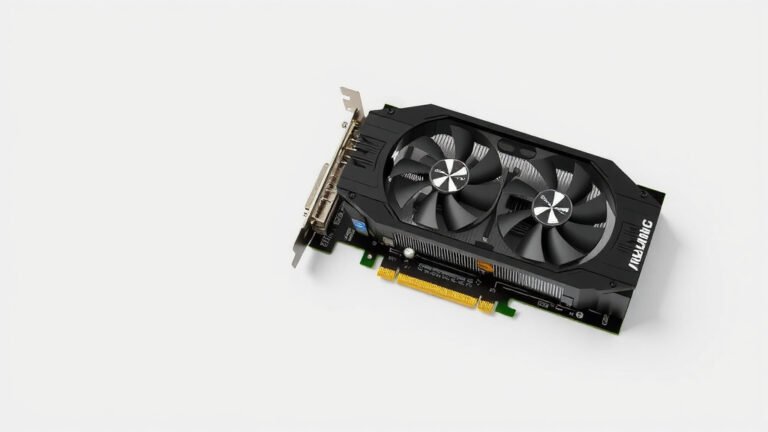
Your Ultimate Graphics Card Buying Guide for 2026
Choosing the right graphics card can seriously boost your PC’s performance for gaming, creative work, or even just a smoother everyday experience. You need to match the card’s power to your needs and your budget. Think about the games you play or the software you use most often.
We found that the best graphics card for you isn’t just about raw power. It’s a balance of graphics processing unit (GPU) capabilities, memory, and how it fits with your existing computer setup. Making the wrong choice could mean overspending or not getting the upgrade you hoped for.
- Consider your main use (gaming, video editing, etc.).
- Set a clear budget before you start looking.
- Check compatibility with your computer’s power supply and case.
- Research benchmarks for specific games or software.
Let’s walk through how to find the perfect graphics card for your setup and budget.
Choosing Your Next Graphics Upgrade
Finding the right graphics card is exciting! It’s like getting a power-up for your PC. We know it can seem a little overwhelming with all the options out there. Let’s break down what truly matters for your computer. This guide will help you make a smart choice without any headaches.
Think of your graphics card, or GPU, as the engine for anything visual on your screen. It’s vital for smooth gameplay and quick rendering in creative software. Getting this right means your PC can keep up with your demands.
Understanding Your PC’s Needs
Gaming Performance: What Resolution and Settings?
For gamers, the biggest question is what resolution you play at and how high you like your graphics settings. Are you aiming for 1080p at high settings, 1440p, or the ultimate 4K experience? Higher resolutions and ultra settings demand more powerful GPUs.
We found that if you’re happy with 1080p gaming, you can often get by with a mid-range card. For 1440p, a solid upper-mid-range or high-end card is usually needed. 4K gaming, however, typically requires one of the most powerful cards available to run smoothly.
Consider the types of games you play. Fast-paced esports titles might prioritize frame rates, while graphically demanding AAA titles need raw power for visual fidelity. Many experts suggest checking benchmarks for the specific games you play most often (PCGamer).
Creative Workloads: Video Editing and 3D Rendering
If you use your PC for video editing, graphic design, or 3D rendering, your needs might differ from a gamer’s. While gaming focuses on real-time rendering, creative work often benefits from more VRAM (video memory).
More VRAM helps with handling large project files, higher resolution footage, and complex 3D scenes. We found that software like Adobe Premiere Pro and Blender can greatly benefit from GPUs with ample memory. Some professional applications are also optimized for specific GPU architectures. Our guide to choosing a GPU for video editing can help.
It’s wise to check the recommended system requirements for your primary creative software. You might find that a card with a good balance of processing power and memory is more important than having the absolute fastest GPU on the market.
Key Graphics Card Specifications Explained
GPU Chip and Architecture
The GPU itself is the heart of the graphics card. Companies like NVIDIA and AMD design these chips. Newer architectures generally offer better performance and efficiency per clock cycle. Think of it as a newer, smarter engine.
When looking at cards, you’ll see names like NVIDIA GeForce RTX 40-series or AMD Radeon RX 7000-series. The first number usually indicates the generation, while the subsequent numbers represent the performance tier within that generation. Higher numbers generally mean more power. We found that research into these generational improvements is helpful.
Video RAM (VRAM): How Much Do You Need?
VRAM is the dedicated memory on the graphics card. It stores textures, frame buffers, and other graphical data. More VRAM is essential for higher resolutions and more detailed graphics.
For 1080p gaming, 8GB of VRAM is often sufficient. If you’re targeting 1440p or 4K, or if you’re involved in demanding creative tasks, 12GB, 16GB, or even more can make a big difference. We’ve seen performance bottlenecks occur when VRAM is insufficient for the task at hand.
Clock Speed and Core Count
Clock speed refers to how fast the GPU can process instructions. Core count refers to the number of processing units on the chip. While these specs sound important, they aren’t the whole story. A GPU with a lower clock speed but a more efficient architecture can sometimes outperform one with higher specs.
We found that focusing too much on just clock speed or core count can be misleading. It’s often better to look at overall performance benchmarks in real-world scenarios for the tasks you care about.
Power Consumption and Cooling
More powerful GPUs consume more electricity. Make sure your power supply unit (PSU) can handle the wattage requirements of your chosen card. A good rule of thumb is to have a PSU with at least 100-150 watts more than the GPU’s recommended minimum. Many experts recommend checking PSU calculators online.
Graphics cards also generate heat. They come with built-in cooling solutions, usually fans and heatsinks. Some high-end cards have beefier cooling systems. Ensure your PC case has adequate airflow to keep the card cool, which helps maintain performance and longevity. Overheating can throttle performance, meaning your card won’t run at its full potential. Learn how to ensure adequate airflow for your GPU’s cooling needs.

Compatibility and Your Existing System
Power Supply Unit (PSU) Check
This is a big one! Your PSU needs to provide enough clean, stable power for all your components, especially the new graphics card. An underpowered PSU can cause crashes, instability, or even prevent your system from booting.
Check the recommended PSU wattage for the graphics card you’re interested in. Then, look at the wattage of your current PSU. If it’s close to the recommendation, you might need to upgrade your PSU. We also recommend checking if your PSU has the necessary PCIe power connectors.
Physical Space: Will It Fit?
Graphics cards come in various sizes. Some are compact dual-slot cards, while others are massive triple-slot behemoths. Measure the available space inside your PC case before you buy. Pay attention to both the length and the height of the card.
Don’t forget to consider the space needed for proper airflow. A card crammed into a tight space will likely run hotter and potentially perform worse. A quick look at your case’s specifications for GPU clearance can save you a lot of trouble.
Making Your Final Decision: A Quick Checklist
Ready to narrow down your options? Here’s a simple checklist to keep you on track:
- Confirm your primary use: Gaming? Creative work? General use?
- Set your budget: How much are you comfortable spending?
- Identify your target resolution and frame rate: 1080p? 1440p? 60 FPS? 120+ FPS?
- Check PSU wattage and connectors: Is your power supply sufficient?
- Measure your PC case: Will the card physically fit?
- Look up benchmarks: See how your top choices perform in your favorite games or software.
Conclusion
You’ve learned that choosing a graphics card involves balancing your specific needs with your budget. We’ve covered how to assess your gaming or creative workloads, understand key specs like VRAM and architecture, and ensure compatibility with your system. Don’t get overwhelmed by marketing jargon. Instead, focus on benchmarks for the games and software you actually use. Armed with this knowledge, you’re ready to make a smart upgrade that enhances your PC experience. Now, it’s time to start comparing models and find that perfect card!
Frequently Asked Questions
Do I need the most expensive graphics card for gaming?
Not necessarily! We found that for 1080p gaming, a mid-range card often provides excellent performance. You only need the most powerful cards for demanding 4K gaming or extreme ultra settings. Focus on the resolution and game types you play most.
How much VRAM is enough for video editing?
For video editing, we suggest aiming for at least 12GB of VRAM, especially if you work with high-resolution footage or complex projects. More VRAM helps speed up rendering and smooth out your workflow. Check your editing software’s recommendations too.
Can I use an older graphics card if my budget is tight?
Yes, you can! Researching older generations can uncover great value. We found that even a few generations back can still offer solid performance for 1080p gaming or general use if you check benchmarks carefully. Just ensure it meets your minimum requirements.
What happens if my power supply isn’t strong enough for a new GPU?
An insufficient power supply can lead to system instability, crashes, or even prevent your PC from booting altogether. We recommend checking the GPU’s wattage requirement and ensuring your PSU has at least 100-150 watts extra capacity.
Should I prioritize clock speed or VRAM for my graphics card?
Generally, VRAM is more critical for higher resolutions and demanding creative tasks, while clock speed is a factor in raw processing speed. We found that balancing both is key, but insufficient VRAM often causes bigger performance issues than slightly lower clock speeds.


![10 Best Amd Gpu Currently [2026]](https://spsolutionscare.com/wp-content/uploads/2026/08/10-best-amd-gpu-currently-2026-featured-768x432.jpg)

![10 Best Gpu For External Gpu [2026]](https://spsolutionscare.com/wp-content/uploads/2026/09/10-best-gpu-for-external-gpu-2026-featured-768x432.jpg)