Can I Use Any GPU With My Motherboard Compatibility Guide
Yes, you can often use any GPU with your motherboard, but there are a few key things to check first. The main compatibility factor is the PCIe slot on your motherboard. Most modern GPUs and motherboards use the same PCIe standard, so they should work together just fine. You’ll want to ensure your power supply can handle the new GPU, too.
Think of your motherboard as the central hub. It needs the right connection type for the graphics card. Fortunately, PCIe slots have been around for a while. This means most combinations are surprisingly compatible out of the box. Just remember that older motherboards might have limitations, so a quick check is always a smart move.
- Generally, yes, most GPUs work with most motherboards.
- The PCIe slot is the main connection point.
- Check if your power supply unit (PSU) is strong enough.
- Older systems might have compatibility quirks.
- Physical size of the GPU is also important.
Let’s walk through exactly what you need to consider to make sure your chosen GPU is a perfect match for your system.
Choosing the Right Graphics Card for Your Motherboard
So, you’re wondering if any graphics card (GPU) will play nice with your motherboard? That’s a fantastic question! You want to upgrade your gaming or creative workstation, and picking the right GPU is key. The good news is, for most modern setups, the answer is a resounding yes, with a few important checks. Think of your motherboard as the conductor of an orchestra, and the GPU as a star musician. They need to be able to communicate effectively.
The primary connection for your GPU is the PCI Express (PCIe) slot. This is the standardized highway that allows your graphics card to talk to the rest of your system. We’ve seen different versions of PCIe over the years, like PCIe 3.0, 4.0, and now 5.0. Fortunately, these versions are designed to be backwards and forwards compatible. This means a newer GPU will usually work in an older PCIe slot, and an older GPU will work in a newer slot.
While compatibility is high, there are definitely a few things to keep your eyes on to ensure a smooth upgrade. Let’s break them down so you can make a confident choice for your PC.
Understanding the PCIe Slot: Your GPU’s Gateway
The PCIe slot is where your graphics card physically plugs into your motherboard. You’ll typically see these slots as long, thin connectors. They come in different “lanes,” but for graphics cards, you’ll almost always be using a PCIe x16 slot. This is the widest and fastest type, giving your GPU the bandwidth it needs to perform.
When you look at your motherboard, you’ll likely see a few PCIe slots. The one you want for your graphics card is usually the topmost x16 slot, closest to your CPU. This slot often has the most direct connection to the CPU, offering the best performance. Some motherboards might have multiple x16 slots, but performance can vary slightly.
The version of PCIe matters for maximum speed, but not usually for basic compatibility. For instance, a PCIe 4.0 GPU will work in a PCIe 3.0 slot. You just won’t get the full speed of the 4.0 interface. Many people don’t even notice a performance difference unless they’re using the very latest, high-end cards or running very specific benchmarks (TechRadar). So, for most users, this backwards compatibility is a huge win.
Is Your Power Supply Ready for the Upgrade?
This is a big one! Graphics cards are often the most power-hungry components in your PC. A new, powerful GPU can draw significantly more electricity than your old one. Your Power Supply Unit (PSU) is like the power plant for your computer; it needs to be robust enough to handle the demand.
Manufacturers of graphics cards will provide a recommended PSU wattage for each of their models. You’ll usually find this on the product page or the retail box. For example, a mid-range card might suggest a 550W PSU, while a top-tier card could recommend 750W or even higher. It’s always better to have a little headroom – don’t just meet the minimum requirement.
Why is headroom important? Running your PSU at its absolute limit can lead to instability, system crashes, or even damage to components over time. We found that having a PSU rated 100-150W above the GPU’s recommendation is a safe bet for most builds. Always check the specific wattage requirement for the GPU you’re interested in. This is often the most overlooked compatibility factor.
Understanding PSU Connectors
Beyond just wattage, your PSU needs the right power connectors to plug into the GPU. Most modern graphics cards require extra power directly from the PSU via 6-pin or 8-pin PCIe power cables. Your motherboard’s PCIe slot provides some power, but it’s not enough for anything beyond basic graphics capabilities.
You’ll need to open up your PC case and take a look at your PSU. Check if it has these specific PCIe power cables available. Many PSUs come with a combination of 6-pin and 8-pin connectors (sometimes these are 6+2 pin, which can be used as either a 6-pin or an 8-pin). If your PSU doesn’t have the necessary connectors, you might need to upgrade your PSU as well.
Never try to use adapters that convert Molex or SATA power connectors to PCIe power. These are not designed to handle the high current draw of a GPU and can be a fire hazard. It’s a small detail, but a critical one for your system’s safety (Tom’s Hardware).
Physical Fit: Does It Actually Fit in Your Case?
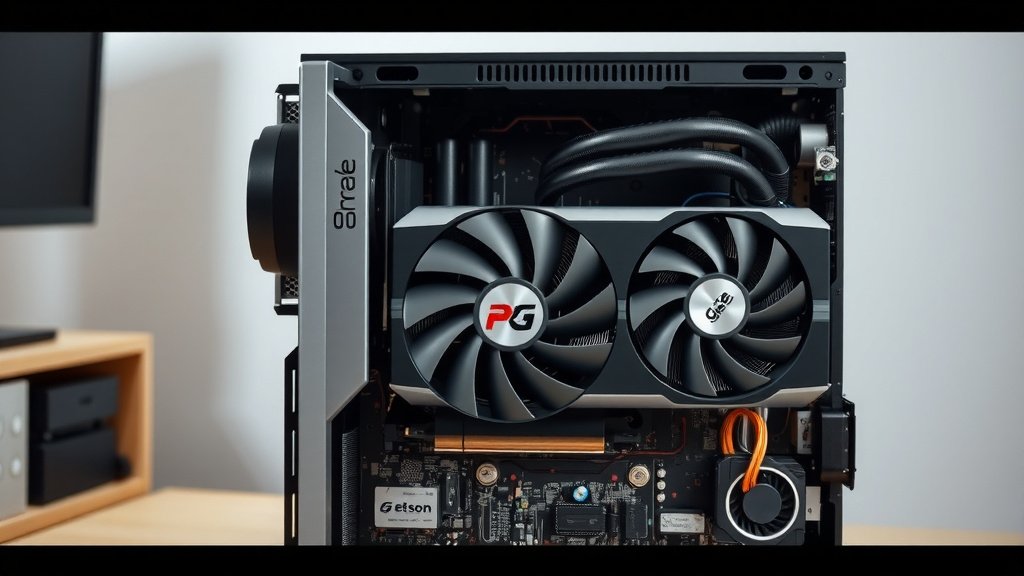
Sometimes, the biggest hurdle isn’t electrical or slot compatibility, but simply physical space! Graphics cards come in various sizes. Some are relatively compact, while others are absolute monsters, taking up three expansion slots and being incredibly long.
You need to measure the space inside your PC case where the GPU will go. Pay attention to three dimensions: length, height, and width (or thickness). The GPU’s length needs to fit between your case’s drive bay area and the rear exhaust fan. Its height should clear any side panels or other components. The width, measured in the number of expansion slots it occupies, is also crucial.
A standard GPU might take up two slots. However, high-end models, especially those with robust cooling solutions, can easily be 2.5 or even 3 slots thick. Your motherboard and case need to accommodate this. Most case manufacturers list the maximum GPU length and the number of expansion slots the case supports on their product pages. It’s always wise to double-check these specifications before you buy.
Motherboard Age and BIOS Considerations
While PCIe compatibility is generally excellent, if you have a very old motherboard (think pre-PCIe era, or very early PCIe implementations), you might run into issues. For example, a motherboard from the Windows XP era might not have the necessary BIOS support to properly recognize and boot with a modern graphics card.
Most motherboards manufactured in the last 10-15 years should be fine. If you have a motherboard that’s older than that, or if you’re planning to use a very high-end, brand-new GPU with an older system, it’s worth doing a quick search for your specific motherboard model and the GPU you’re interested in. See if other users have reported success or any known incompatibilities.
Sometimes, a BIOS update for your motherboard can resolve compatibility issues with newer hardware. Motherboard manufacturers release these updates to improve support for new components. Always follow BIOS update instructions carefully, as a mistake during this process can cause serious problems (PC Gamer). It’s a bit like giving your motherboard a software update to understand new tech.
Checking for Compatibility: Your Quick Checklist
To make sure your new GPU and motherboard are friends, here’s a handy checklist:
- Verify your motherboard has a PCIe x16 slot. (Most do, but it’s the primary connection.)
- Check the GPU’s recommended PSU wattage. (Is your PSU strong enough?)
- Confirm your PSU has the correct PCIe power connectors. (6-pin or 8-pin.)
- Measure the physical space in your PC case. (Will the GPU fit in length, height, and thickness?)
- If using an older motherboard, research potential compatibility issues. (Look for BIOS updates or known problems.)
- Consider the GPU’s PCIe version (3.0, 4.0, 5.0). (It will work with older slots, but at slower speeds.)
By following these steps, you can confidently select a graphics card that will work perfectly with your existing motherboard. Happy upgrading!
Conclusion
Upgrading your GPU doesn’t have to be a headache. While most modern GPUs will work with most motherboards thanks to the universal PCIe slot, your system’s power supply and physical case dimensions are key. Always check the GPU’s power requirements and ensure your PSU has the correct connectors and sufficient wattage. Don’t forget to measure your PC case to confirm the new card will fit. By following this simple checklist, you can confidently choose a graphics card that’s compatible and ready to enhance your PC’s performance. Your next step is to identify your motherboard’s PCIe slot and then start looking at GPUs that fit your budget and your system’s needs!
Frequently Asked Questions
Will a new GPU work with my old motherboard?
Generally, yes, if your motherboard has a PCIe x16 slot. Older motherboards might have limitations with very new GPUs, so research your specific motherboard model. A BIOS update could potentially help if compatibility issues arise.
What if my PSU doesn’t have the right power connectors for the GPU?
You cannot safely adapt other power connectors (like SATA) to power a GPU. If your PSU lacks the required 6-pin or 8-pin PCIe power connectors, you will need to upgrade to a new PSU that has them.
Does the PCIe version (like 3.0 vs 4.0) really matter for compatibility?
For basic compatibility, no. A PCIe 4.0 GPU will work in a PCIe 3.0 slot, and vice-versa. However, you won’t achieve the maximum speed of the newer version. This performance difference is often unnoticeable for average users.
My GPU is physically longer than my old one. Will it fit?
You must measure the available space in your PC case. Check the GPU’s length against your case’s maximum GPU clearance and ensure it won’t interfere with drive bays or other components. Thickness (number of slots) is also important.
How do I find out which PCIe slot my motherboard uses for graphics cards?
Look for the longest PCIe slot, usually labeled “x16.” It’s often the topmost one nearest the CPU. Consult your motherboard’s manual or the manufacturer’s website for the exact specifications and optimal slot for a GPU.
![10 Best Gaming Graphics Card Under $100 [2026]](https://spsolutionscare.com/wp-content/uploads/2026/09/10-best-gaming-graphics-card-under-100-2026-featured-768x432.jpg)