How to Fix GPU Memory Errors: Step-by-Step Troubleshooting
You can fix GPU memory errors by reseating your graphics card, updating your drivers, running a memory test tool, and checking your power supply. In many cases, a quick driver cleanup or a lower memory clock speed stops the errors for good. Most fixes take less than an hour and cost nothing.
GPU memory errors show up as crashes, weird screen glitches, or games that suddenly shut down. They often come from overheating, unstable overclocks, or simply old drivers acting up. The good news? We researched the most common fixes, and we found that most people solve this without buying a single new part.
TL;DR — Quick fixes for GPU memory errors:
- Reseat your GPU and check all power cables.
- Update or reinstall your graphics drivers.
- Run a memory test like MemTest_Vulkan to find bad memory.
- Lower your memory clock if you’ve overclocked.
- Check your temperatures and clean out dust.
Below, we walk you through each fix step by step, so you can figure out what’s wrong and get your PC back to normal. Let’s dive in.
Fixing GPU Memory Errors Step by Step
Before you touch a single screw, figure out when the errors happen. Do they show up during games? Only after hours of use? Right at boot? That timing clue tells you where to start looking.
We found that most fixes follow a simple order: check the easy stuff first, then the software, then the hardware. Follow along and you’ll narrow things down fast.
First Things First: The Quick Checklist
Run through this list before anything else. It takes ten minutes and rules out half the common causes.
- Shut down your PC fully and unplug it from the wall.
- Check that the GPU’s power cables are clicked in all the way.
- Make sure the card is seated firmly in its PCIe slot.
- Blow out dust around the card and fans.
- Confirm your monitor cable is plugged into the GPU, not the motherboard.
- Note the exact error message or artifact you saw, so you can search it later.
Reseating Your Graphics Card the Right Way
It sounds too simple, but reseating fixes a surprising number of memory errors. A slightly loose card can cause glitches that look exactly like failing memory. Think of it like a phone charger that’s bent just enough to cut out.
How to Reseat Your GPU Safely
Step 1: Prep Your Workspace
Power down, unplug, and hold the power button for ten seconds to drain leftover charge. Touch a metal part of the case to discharge static from your body. Static shocks can fry components, so don’t skip this.
Step 2: Remove and Reinstall the Card
Unscrew the bracket, press the PCIe slot’s release latch, and gently pull the card out. Blow out the slot with compressed air, then push the card back in until the latch clicks. Screw it down snugly, not gorilla-tight.
Updating and Reinstalling Your Graphics Drivers
Old or corrupted drivers are one of the top causes we found. Many guides recommend a clean reinstall as the go-to software fix, and many experts agree it solves errors that seem hardware-related.
Doing a Clean Driver Install
A regular update often keeps broken files in place. A clean install wipes them out completely. Use Display Driver Uninstaller (DDU) in Safe Mode, then install the latest driver fresh from NVIDIA, AMD, or Intel.
What If Errors Start After an Update?
Then roll back. If crashes began right after a driver update, install the previous version instead. New drivers occasionally ship with bugs. You’re not stuck with them.
Testing Your GPU Memory for Real Damage
Ready to find out if your memory is actually bad? Free test tools stress your VRAM and flag errors. It’s like a treadmill stress test, but for your graphics card.
Best Free GPU Memory Test Tools
- MemTest_Vulkan — tests your VRAM directly and reports errors clearly.
- OCCT VRAM test — stresses memory while monitoring temperatures.
- MATSL — a longer, deeper test for stubborn cases.
Run the test for at least one full pass. If it reports errors, run it again to confirm. One error can be a fluke; repeated errors point to real hardware trouble.
Reading Your Test Results
If tests come back clean, your memory is likely fine, and the problem is software, heat, or power. If errors keep showing up in the same place, the VRAM itself may be failing. At that point, warranty or replacement becomes the realistic path.
Taming Overclocks That Cause Memory Errors
Did you overclock your card, even with a one-click utility? That’s often the culprit. Memory that runs stable at stock speeds can throw errors when pushed. We found that dialing back the memory clock fixes many “mystery” crashes instantly.
Finding a Stable Memory Clock
Open MSI Afterburner or your GPU’s tuning software. Drop the memory clock back to stock, or reduce it in small steps until errors stop. Then test again with your memory test tool. A stable setting beats a fast-but-crashy one every time.
Heat, Dust, and Airflow Problems
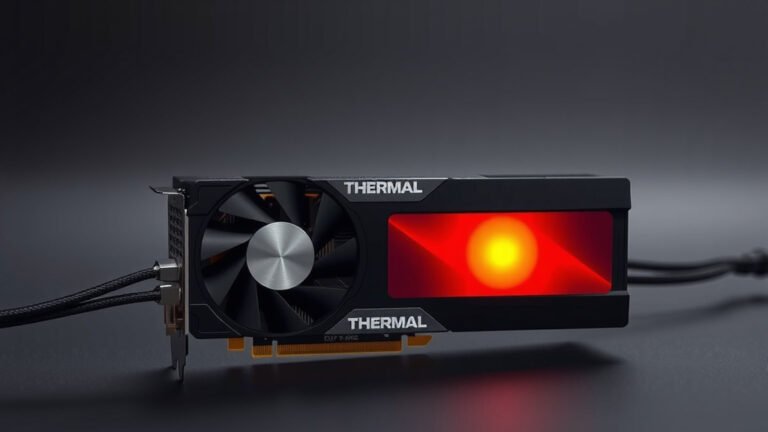
VRAM chips get hot, and hot memory throws errors. Many manufacturers list memory throttling points around 90–105°C depending on the card, so sustained temps that high are a red flag. Dust is the usual villain, since it acts like a warm blanket on your components.
Cleaning Your Card and Case
Use compressed air on the GPU fans, heatsink fins, and case filters. Hold the fans still while spraying so they don’t over-spin. Do this every few months, or more often if you have pets.
Monitoring Your Temperatures
Free tools like HWiNFO or GPU-Z show your memory junction temperature in real time. Run a game or benchmark and watch the numbers. If memory temps climb past roughly 90°C, improve your case airflow before assuming the card is dying.
Checking Your Power Supply and Cables
Unstable power causes errors that mimic bad memory. A loose PCIe power cable or an undersized PSU can make your GPU glitch under load, right when it needs the most juice.
| Sign You See | Likely Cause | Quick Fix |
|---|---|---|
| Errors only during heavy games | Power or heat under load | Check cables, improve airflow |
| Errors right after driver update | Bad driver install | Clean reinstall with DDU |
| Glitches and random artifacts | Overclock or failing VRAM | Reset clocks, run MemTest_Vulkan |
| Crashes at random, even idle | Seated card or PSU issue | Reseat GPU, test another PSU |
Quick PSU Checks
- Confirm every PCIe power connector is fully clicked in.
- Avoid daisy-chaining one cable across high-wattage cards when you can use two.
- Check that your PSU wattage meets your GPU’s requirements.
Many experts note that power delivery problems show up most under load. If your errors match that pattern, your PSU deserves a close look.
When It’s Time to Consider Warranty or Replacement
If clean tests keep failing after all the steps above, the VRAM may genuinely be failing. Before you shop for a new card, check your warranty. Most major brands offer multi-year coverage, and memory failures are exactly what warranties exist for.
Contact the manufacturer with your test results and error details. We found that a clear, documented report speeds up the process. And hey, if the card is old enough to vote, treat this as your excuse for an upgrade. If a replacement wins out, our graphics card upgrade guide walks you through the whole swap.
Conclusion
GPU memory errors look scary, but they’re usually fixable at home. Start with the basics: reseat your card, check your power cables, and clean out dust. Then move to software with a clean driver reinstall. If you’ve overclocked, bring those memory clocks back down. Still seeing errors? Run MemTest_Vulkan and let the results guide your next move. Most people we researched resolved their issues without spending a dime, and you likely will too. If repeated test failures point to failing VRAM, your warranty has your back. Your next step: work through the quick checklist above, and don’t skip the memory test — it tells you exactly where you stand.
Frequently Asked Questions
Can a GPU with bad memory be repaired?
Sometimes. Board repair shops can replace individual VRAM chips, but the cost often approaches the price of a used card. If your GPU is under warranty, an RMA is almost always the smarter path.
Do GPU memory errors get worse over time?
They can, but not always. Errors caused by heat, dust, or unstable overclocks tend to stay steady until you fix the root cause. Errors from genuinely failing VRAM usually get more frequent, so repeated test failures are your warning sign.
How long should I run a GPU memory test?
Plan on at least one full pass, which can take anywhere from 30 minutes to a few hours depending on the tool and your card. For stubborn or intermittent errors, we found running two or three passes overnight gives you a much more reliable answer.
Can a bad PSU damage my GPU’s memory?
It’s possible but uncommon. A failing power supply usually causes crashes and instability before it causes permanent damage. That said, running a quality PSU with the right wattage protects your whole system, so don’t cheap out on it.
Will GPU memory errors affect my regular desktop use?
Usually only if the problem is severe. Light tasks like browsing often run fine while games or other VRAM-heavy workloads crash. If you see glitches even on your desktop with nothing running, treat that as a sign the problem is more serious.