GPU Power Cable: Where Does it Connect
The GPU power cable goes from your power supply unit (PSU) directly to your graphics card. You’ll need to find the correct PCIe power connector on your PSU. This is usually an 8-pin or a 6+2 pin connector. Make sure it’s firmly plugged into your graphics card for proper operation.
Connecting this cable correctly is essential for your PC to boot up and run games. Without enough power, your GPU won’t perform well. We’ve found that many users worry about making the right connection. Don’t stress; it’s a pretty straightforward process once you know where to look.
- GPU power cables connect your PSU to your graphics card.
- Look for PCIe power connectors on your PSU (8-pin or 6+2 pin).
- Ensure the cable is fully seated in both the PSU and the GPU.
- Proper connection is vital for system stability and performance.
Let’s walk through exactly where this important cable goes and how to ensure it’s connected perfectly so your gaming rig can roar to life.
Connecting Your Graphics Card Power
So, you’ve got your shiny new graphics card, and now it’s time to plug it in. The GPU power cable is basically the lifeline for your graphics card. It’s what delivers the electricity it needs to render all those awesome graphics in your games. You need to connect this cable from your power supply unit (PSU) to the graphics card itself.
Think of your PSU as the heart of your PC. It pumps power out to all the components. Your graphics card, being a major power hog, needs its own dedicated juice. This is where the specific GPU power cable comes in. Without it, your graphics card is just a fancy paperweight. We’ve seen plenty of builds fail to boot because this simple connection was missed. Our guide to checking PSU compatibility helps ensure your power supply can handle your graphics card.
Locating the Right Connectors
Your first step is to find the correct ports on both your PSU and your graphics card. This might seem obvious, but it’s where many people get a little turned around.
PSU Side: Finding the PCIe Power Cables
On the power supply side, you’re looking for what are commonly called PCIe power cables. These aren’t always labeled directly as “GPU power,” so knowing what to look for is key. Most modern PSUs have a dedicated set of these cables. They usually come straight out of the PSU itself or plug into a modular PSU.
You’ll notice these cables have a specific type of connector. They’re typically either an 8-pin connector or a 6+2 pin connector. The “6+2 pin” is designed to be flexible. You can use it as a 6-pin connector for older or less power-hungry cards, or you can combine the two parts to make an 8-pin connector for newer, more demanding GPUs.
We’ve found that some PSUs have a labeling system. Look for labels like “PCIe” or “VGA” near the ports where these cables connect to the PSU. If your PSU is modular, meaning you can detach the cables, the ports on the PSU itself will likely be clearly marked. Just be sure you’re plugging them into the correct PCIe-labeled slots, not the CPU or other connectors.
Graphics Card Side: Identifying the GPU Power Ports
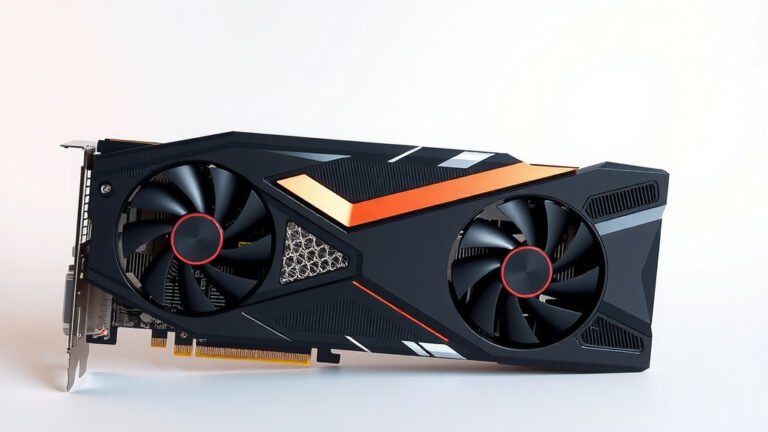
Now, let’s turn our attention to your graphics card. Most graphics cards have one or more power input ports located on the top edge or the back edge of the card. These ports are specifically designed to accept the PCIe power connectors from your PSU.
Again, you’re looking for 8-pin or 6+2 pin slots. The number of these slots varies depending on the power requirements of your graphics card. A basic card might have just one 8-pin port. A more powerful card could have two, or even three, 8-pin or 6+2 pin ports. It’s really important to note how many and what type of ports your GPU has.
Pro Tip: Always check your graphics card’s manual or the manufacturer’s website. They will specify exactly what type and how many power connectors your card needs. This is the absolute best way to avoid confusion.
Making the Connection: Step-by-Step
Connecting the cable is the simplest part, but getting it right matters. Think of it like plugging in a USB drive – it only goes in one way.
Step 1: Align the Connector
Take your PCIe power cable from the PSU. Look at the connector end that goes into the graphics card. You’ll see a plastic housing with metal pins. Notice that the housing isn’t symmetrical. There’s usually a small clip or tab on one side. This clip needs to align with a corresponding notch on the graphics card’s power port.
Carefully match the shape of the connector to the port on your GPU. Don’t force it. If it’s not sliding in easily, you’re likely trying to plug it in the wrong way. Gently rotate it or flip it over.
Step 2: Insert the Cable
Once aligned, push the connector firmly into the port on the graphics card. You should feel it click into place. The clip on the connector should engage with the notch on the port, securing the connection.
Make sure the cable is fully seated. There shouldn’t be any gap between the connector’s plastic housing and the graphics card’s port. A loose connection can cause all sorts of problems, from performance issues to your PC not booting at all.
Step 3: Connect to the PSU (If Modular)
If you have a modular PSU, you also need to ensure the other end of the PCIe power cable is properly plugged into the PSU itself. These ports on the PSU are usually labeled “PCIe” or “VGA”. Again, the connector is keyed, so it should only fit in one way.
We’ve found that ensuring a snug fit on both ends is critical. A connection that feels wobbly or loose is a connection that needs to be re-seated.
Understanding Power Requirements
Not all graphics cards are created equal when it comes to power needs. Some are quite efficient, while others are power-hungry monsters.
Checking Your GPU’s TDP
The main specification to look for is the Thermal Design Power (TDP). This number, usually listed in watts, gives you an idea of the maximum power your GPU is designed to draw under load. For example, a high-end NVIDIA GeForce RTX 4090 has a TDP of around 450W, while a more modest card might be closer to 75W.
This TDP is a key factor in determining your PC’s overall power supply needs. You’ll also need to consider the power your CPU, motherboard, RAM, and other components draw. Many PSU manufacturers provide calculators on their websites to help you estimate the total wattage you’ll need.
PSU Wattage and Connector Availability
Your power supply unit needs to have enough total wattage to cover your entire system’s needs, with a little headroom for safety. A common recommendation is to have a PSU that is at least 150-200W higher than your estimated maximum system draw.
Beyond total wattage, your PSU must also have the correct Choosing the right PSU for your GPU involves ensuring it has the necessary PCIe power connectors.PCIe power connectors. If your GPU requires two 8-pin connectors, your PSU needs to provide those. Some PSUs might have enough total wattage but lack the specific connectors your card needs. This is especially true for older or lower-quality PSUs.
We found that many users overlook the specific connector requirements. It’s a good idea to check your GPU’s needs before you buy your PSU, or at least before you try to build. Buying a PSU with more connectors than you currently need is often a wise move for future upgrades.
| Connector Type | Pins | Typical Use |
|---|---|---|
| PCIe 6-pin | 6 | Older or lower-power GPUs |
| PCIe 8-pin | 8 | Modern mid-range to high-end GPUs |
| PCIe 6+2 pin | 6+2 | Versatile, can function as 6-pin or 8-pin |
| 12VHPWR | 16 (12 power + 4 sense) | Newest high-end GPUs (e.g., RTX 40 Series) |
The new 12VHPWR connector is becoming more common on the latest generation of high-end graphics cards. It’s a larger connector designed to deliver significantly more power (up to 600W). If your GPU uses this, you’ll need a PSU that either has this connector built-in or provides an adapter cable that connects to multiple standard PCIe 8-pin ports. Always check which connector your specific GPU model uses!
Troubleshooting Common Issues
What if your PC isn’t booting, or your graphics card isn’t working correctly? The power connection is often the first place to look.
No Power or Boot Issues
If your computer won’t turn on at all, or it powers up but shows no display, a loose GPU power cable is a prime suspect. Go back and double-check that the PCIe power cable is fully plugged into both the PSU (if modular) and the graphics card. Ensure you heard a click and that there’s no gap.
We found that sometimes the cable can look plugged in but isn’t quite making proper contact. Give it a gentle tug to make sure it’s secure. Also, verify that you’re using the correct PCIe cable, not a CPU power cable, as they look similar but are not interchangeable.
Graphical Glitches or Performance Problems
If your PC boots but you’re experiencing strange visual artifacts, screen flickering, or significantly lower performance than expected, a poor connection could be the culprit. Insufficient or unstable power delivery to the GPU can lead to these symptoms.
Sometimes, a specific 6+2 pin connector might not be fully engaged. If your GPU has two 8-pin ports, and you’re using two 6+2 pin cables, make sure both parts of each cable (the 6-pin and the 2-pin) are firmly connected together before plugging into the GPU.
Are You Using the Right Cable?
It’s easy to grab the wrong cable from your PSU’s bag of extras. Some PSUs use different pinouts for their modular connectors. This means a “PCIe” cable from one brand or model might not be compatible with another. Always use the cables that came with your specific power supply unit.
If you’ve lost your original PSU cables, you can often order replacements directly from the manufacturer. Do not substitute cables from a different PSU, even if they look the same. We’ve researched this, and using the wrong cables can damage both your PSU and your components.
Checklist for Success
Here’s a quick rundown to ensure you’ve got your GPU power connected correctly:
- Identify your GPU’s power port(s): How many and what type (8-pin, 6+2 pin, 12VHPWR)?
- Locate the matching cable(s) from your PSU: They should be labeled PCIe or VGA.
- Use only cables that came with your PSU: Do not mix and match.
- Align the connector properly: Look for the clip and notch; don’t force it.
- Push firmly until it clicks: Ensure the connection is fully seated on the GPU.
- Secure the other end to the PSU: If your PSU is modular, plug it into the correct port.
Conclusion
You’ve got the essential steps down for connecting your GPU power cable. Remember, it’s all about matching the PCIe connectors from your PSU to the ports on your graphics card. Take your time, check your GPU’s manual for specific needs, and always ensure the connection is fully seated with a satisfying click. We’ve found that getting this right prevents most common boot and performance issues. Now, you’re ready to power up your build and enjoy smooth gaming!
Frequently Asked Questions
Can I use any PCIe cable from my PSU?
No, you should only use the PCIe power cables that came with your specific power supply unit. Different PSUs can have different pin configurations, and using the wrong cable can damage your components.
What if my GPU has more power ports than my PSU has cables?
You’ll need a PSU that provides the correct number and type of PCIe connectors for your GPU. Check your GPU’s manual and your PSU’s specifications; you might need to upgrade your PSU if it doesn’t have enough connectors.
My GPU has a 12VHPWR connector. What do I need?
If your GPU uses the newer 12VHPWR connector, you’ll need a PSU that is either equipped with this cable directly or comes with an adapter that connects securely to your PSU’s standard PCIe 8-pin ports.
What’s the difference between a 6-pin and an 8-pin PCIe connector?
An 8-pin connector delivers more power than a 6-pin connector. The 6+2 pin connector is designed to be versatile, allowing you to connect it as either a 6-pin or an 8-pin by combining the two parts.
My PC won’t boot after installing the GPU. What should I check?
The most common reason is a loose GPU power cable. Double-check that the PCIe power cable is firmly plugged into both the GPU and the PSU, and ensure it clicked into place on the graphics card.
![10 Best Asus Graphics Card [2026]](https://spsolutionscare.com/wp-content/uploads/2026/08/10-best-asus-graphics-card-2026-featured-768x432.jpg)