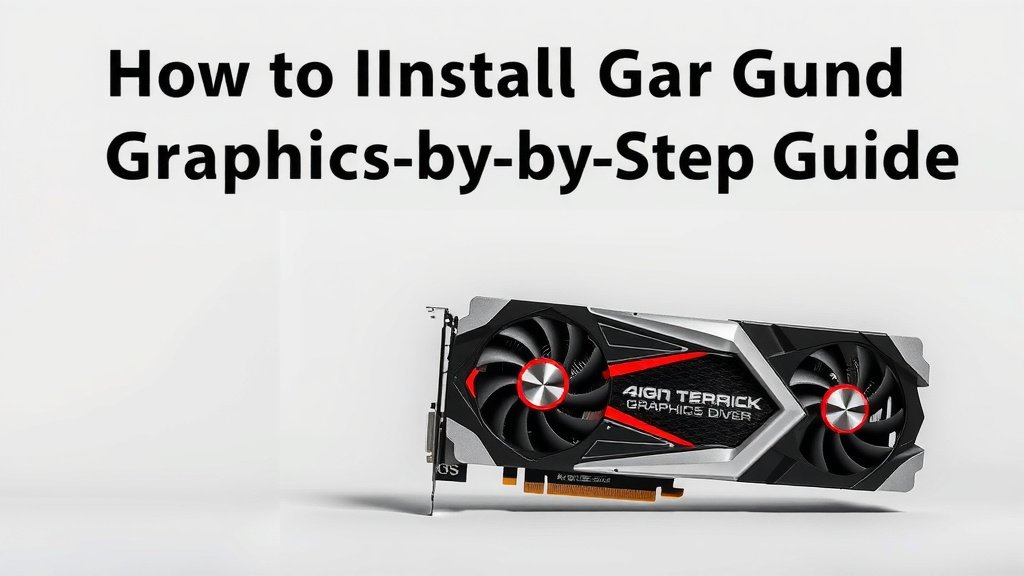
Install Graphics Card Drivers: A Step-by-Step Guide
Installing your graphics card drivers is simpler than you might think! You can easily update them by downloading the latest version directly from the manufacturer’s website. This ensures your graphics card runs at its best performance.
Keeping your drivers updated is important for a few reasons. It can fix annoying bugs, improve game frame rates, and even unlock new features for your card. Many users report a noticeable boost in performance after a simple driver update.
- Find your graphics card brand (NVIDIA, AMD, or Intel).
- Go to their official website.
- Search for the latest driver for your specific card model.
- Download and run the installer.
- Restart your computer when prompted.
Let’s walk through exactly how to get those drivers installed so you can enjoy a smoother, faster experience. We’ll cover the steps for the most common graphics card brands.
Getting Your Graphics Card Drivers Installed
Installing your graphics card drivers is a key step for a smooth gaming and computing experience. Think of drivers as the translator between your graphics card and your computer. Without the right translation, your card can’t perform its best. We’ll guide you through the process, making sure you get the latest and greatest for your hardware.
Why Updating Your Graphics Drivers Matters
You might wonder if updating drivers is really necessary. The answer is a resounding yes! Updates often fix bugs that cause crashes or visual glitches. They can also optimize performance for new games. Many users report better frame rates and less stuttering after an update. It’s like giving your graphics card a tune-up for peak performance.
New drivers can also introduce new features or improve support for specific software. For example, certain creative applications or video editing suites might run much better with updated drivers. Keeping them current ensures you’re not missing out on these performance boosts and new capabilities.
Identifying Your Graphics Card
Before you can download drivers, you need to know what graphics card you have. Most computers use cards from NVIDIA, AMD, or Intel. If you’re unsure, don’t worry! There’s an easy way to find out. Your computer keeps this information handy.
Finding Your Graphics Card on Windows
Let’s find that information. For Windows users, the DirectX Diagnostic Tool is your friend. Press the Windows key and ‘R’ on your keyboard together. This opens the Run box. Type ‘dxdiag’ and hit Enter or click ‘OK’.
A new window will pop up. Navigate to the ‘Display’ tab. You should see your graphics card’s name listed clearly. Make a note of this name. You might also see the manufacturer’s name here, which is a big clue!
Finding Your Graphics Card on macOS
For Mac users, it’s even simpler. Click the Apple menu in the top-left corner of your screen. Select ‘About This Mac’. A window will appear, showing your Mac’s overview. Look for ‘Graphics’ in the list.
The name of your graphics card will be displayed there. This information is all you need to proceed. Mac users often have drivers updated through macOS software updates, but it’s still good to know what you have.
Downloading Drivers from Manufacturer Websites
Once you know your card’s identity, you’ll want to get the drivers directly from the source. This is the safest and most reliable method. We’ll cover the main players: NVIDIA, AMD, and Intel.
For NVIDIA Graphics Cards
If you have an NVIDIA GeForce card, head over to the official NVIDIA website. Look for a section labeled ‘Drivers’ or ‘Support’. You’ll typically find an option to manually search for drivers. You’ll need to select your product type (GeForce), series (e.g., GeForce RTX 40 Series), product (e.g., GeForce RTX 4070), and your operating system (Windows 10, Windows 11, etc.).
The website will then present you with the latest available driver. Make sure to download the “Game Ready Driver” for the best gaming performance, or the “Studio Driver” if you focus on creative applications. Click download, and a small installer file will appear.
For AMD Graphics Cards
For those with AMD Radeon cards, visit the AMD support website. Similar to NVIDIA, they offer a driver download tool or a manual search option. You’ll select your product type (Graphics), select series (e.g., Radeon RX 7000 Series), and then your specific product model (e.g., Radeon RX 7800 XT). Don’t forget to choose your operating system.
AMD usually offers a single driver package that is optimized for both gaming and creative tasks. Download the installer. It’s usually a straightforward file that you can run directly.
For Intel Graphics (Integrated or Discrete)
Intel graphics are often integrated into the CPU but can also be discrete cards. Go to the Intel Download Center. You can use their “Intel Driver & Support Assistant” which automatically detects your hardware, or you can manually search. If searching manually, select your processor or graphics product family and then your specific model.
Intel’s drivers are designed to be compatible with a wide range of applications. Download the driver package that matches your system.
Installing the Drivers: Step-by-Step
With the driver file downloaded, it’s time for installation. This part is usually very simple. Most installers guide you through the entire process with clear prompts. You should close any other applications running before you start, especially games or graphics-intensive software.
Running the Installer
Locate the driver file you downloaded. It’s often in your ‘Downloads’ folder. Double-click the file to launch the installer. You might need administrator privileges to run it.
The installer will first extract the necessary files. Then, it will present you with license agreements to accept. Read through them if you wish, and then agree to continue. Most installers offer two options: “Express” or “Custom” installation. For most users, the Express installation is perfectly fine and recommended. It installs everything you need automatically.
The Custom Installation Option
If you choose “Custom,” you’ll have more control. You can decide which components to install. There’s often an option for a “Clean installation.” Many experts recommend this, especially if you’re experiencing issues. A clean installation removes old driver files before installing the new ones. This can prevent conflicts and ensure a fresh start.
Proceed through the installer by clicking ‘Next’ or ‘Continue’. The installation process can take several minutes. You might see your screen flicker or go black temporarily; this is normal as the new display drivers are applied.
Completing the Installation and Restarting
Once the installation is finished, you will likely be prompted to restart your computer. This step is **very important**. It ensures all changes are applied correctly and that your system recognizes the new drivers. Don’t skip it!
After your computer restarts, your graphics drivers should be up-to-date. You can verify this by checking the driver version in the display settings or through the manufacturer’s control panel (like NVIDIA Control Panel or AMD Radeon Software). Enjoy the improved performance!
Checklist for a Successful Driver Update
- Confirm your graphics card model.
- Visit the official manufacturer’s website (NVIDIA, AMD, or Intel).
- Download the latest driver for your specific card and OS.
- Run the installer and follow the on-screen prompts.
- Choose the “Express” or “Clean” installation option.
- Restart your computer when prompted.
Conclusion
You’ve successfully learned how to install your graphics card drivers! It’s a straightforward process that makes a big difference. By downloading the latest drivers directly from NVIDIA, AMD, or Intel, you ensure your system runs smoothly and performs at its peak. This simple step can fix bugs, boost game frame rates, and even enable new features. Don’t forget to restart your computer after installation for everything to take effect. Now, go enjoy your enhanced visual experience!
Frequently Asked Questions
How often should I update my graphics card drivers?
It’s a good idea to check for updates every few months or whenever a new major game is released. Developers often optimize drivers for new titles, so updating can give you a performance boost. You don’t need to update every single time a minor patch comes out unless you’re experiencing a specific issue.
What happens if I install the wrong graphics card driver?
Installing the wrong driver can lead to instability, display issues, or even prevent your computer from booting correctly. You might experience screen flickering, resolution problems, or a complete lack of display. If this happens, you’ll need to boot into Safe Mode to uninstall the incorrect driver and then find the right one.
Is it okay to use a driver cleaner before installing new drivers?
Yes, using a driver cleaner can be very helpful, especially if you’re experiencing persistent issues. It thoroughly removes old driver files that might conflict with the new installation. This “clean installation” method often leads to a more stable system and better performance.
My screen went black during installation, is that normal?
Yes, it’s completely normal for your screen to flicker or go black temporarily during the driver installation process. This happens because the display drivers are being updated or replaced. As long as it comes back on after a short period, you don’t need to worry.
Can I update my graphics drivers automatically?
While some manufacturers offer driver update utilities that can automatically detect and install updates, manually downloading from their official website is generally recommended. This ensures you’re getting the correct, latest version specifically for your hardware and operating system without relying on third-party software.
![10 Best Gb For Graphics Card [2026]](https://spsolutionscare.com/wp-content/uploads/2026/09/10-best-gb-for-graphics-card-2026-featured-768x432.jpg)
![10 Best Budget Gaming Pc Video Card [2026]](https://spsolutionscare.com/wp-content/uploads/2026/09/10-best-budget-gaming-pc-video-card-2026-featured-768x432.jpg)