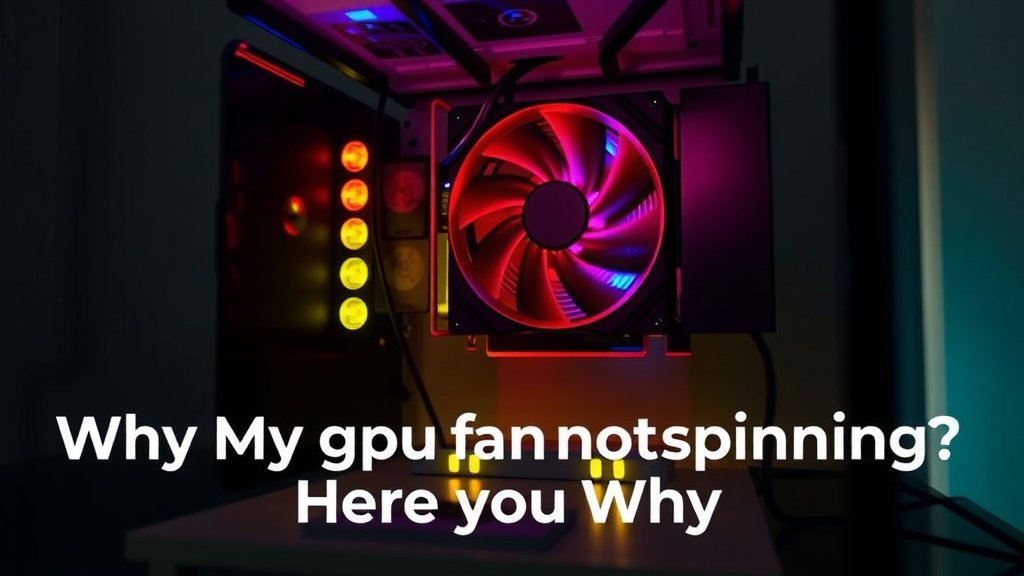
GPU Fan Not Spinning? Here’s Why
Your GPU fan might not be spinning because it’s designed to stay off until the GPU reaches a certain temperature. This is a common and normal feature for modern graphics cards. They often have a “zero RPM” mode that keeps the fan silent during light tasks like browsing or watching videos to save power and reduce noise. The fan will then spin up automatically when your GPU starts working harder, like during gaming.
This smart fan technology helps manage heat effectively. When your GPU is idle, it doesn’t need active cooling, so the fan remains still. As soon as your system demands more from your graphics card, the fan will kick into gear to prevent overheating. This also means that if you’re not seeing fan activity, it doesn’t automatically mean there’s a problem; it’s likely just doing its job by remaining dormant.
- Your GPU fan may not spin because of “zero RPM” mode.
- This is normal when your GPU is not under heavy load.
- Fans are designed to spin up when temperatures rise.
- Check your GPU’s software for fan control settings.
- Overheating is prevented by automatic fan activation.
Let’s take a closer look at why this happens and what you can do if you suspect an issue. We’ll cover the common reasons and simple checks you can perform.
Troubleshooting Your GPU Fan’s Stillness
It’s definitely concerning when you peek into your PC and notice your GPU fan isn’t spinning. You might think, “Is it broken?” or “Am I going to fry my card?” We get it. That pause can feel like a long time. But often, this is perfectly normal behavior for modern graphics cards.
Your graphics card is smarter than you might think. It knows when it needs to cool down and when it can take a break. This means your fan might not be spinning right now, but it could be ready to go the moment your GPU starts to sweat. Let’s dig into the common reasons why this happens and what you can check.
Understanding Modern GPU Fan Behavior
The primary reason your GPU fan isn’t spinning is usually a feature called “zero RPM mode”. Many graphics cards are designed with this technology. They have sensors that monitor the GPU’s temperature.
When your GPU is idle or handling light tasks, like browsing the web or watching a video, it doesn’t generate much heat. In these situations, the fan remains completely still. This keeps your computer quieter and uses less energy. It’s a smart way to manage cooling without unnecessary noise.
When Does the Fan Start Spinning?
The fan’s job is to cool the GPU when it’s working hard. Think about playing a demanding video game or rendering a 3D model. These activities push your GPU to its limits, generating significant heat. As soon as the temperature sensors detect that the GPU is getting too warm, the fan will automatically activate.
This transition is usually smooth. You might hear the fan kick in, and then it will spin at a speed needed to bring the temperature back down to a safe level. Once the load decreases and the temperature drops, the fan may stop again. It’s like a thermostat for your graphics card.
Why Zero RPM is a Good Thing
This intelligent fan control offers several benefits. First, it reduces noise pollution. A constantly spinning fan, even at low speeds, can be an audible distraction. By staying silent when not needed, your GPU contributes to a more peaceful computing experience.
Second, it extends the lifespan of the fan. Like any mechanical component, fans wear out over time. By reducing their operating hours, manufacturers help ensure the fan lasts longer. This also means less dust accumulation when the fan is off, potentially reducing the need for frequent cleaning.
When to Be Concerned: Signs of a Real Problem
While a non-spinning fan often means your GPU is just resting, there are times when it signals an issue. The biggest red flag is overheating. If your GPU fan doesn’t spin up when it absolutely should, you might notice symptoms like:
- Sudden shutdowns or restarts during gaming.
- Visual glitches or artifacts on your screen (like strange colors or lines).
- Significant performance drops or stuttering in games.
- Your computer feeling unusually hot to the touch, especially around the GPU area.
These are clear indicators that your GPU is struggling to cool itself. If you’re experiencing any of these, it’s time to investigate further. Don’t ignore these signs, as prolonged overheating can cause permanent damage to your graphics card.
Checking for Overheating
You can monitor your GPU’s temperature using software. Many tools are available that provide real-time temperature readings. Some popular options include MSI Afterburner, HWMonitor, or your GPU manufacturer’s own utility software. You can monitor your GPU’s temperature using software to see if it’s running too hot.
When running these programs, pay attention to the temperature while your GPU is under load. For instance, start a game. If your GPU temperature climbs rapidly and stays consistently above 80-85 degrees Celsius, it’s a sign that cooling might be insufficient. If the fan is not spinning during these high-temperature periods, you’ve likely found your problem.
Simple Checks You Can Perform
Before assuming the worst, let’s go through some straightforward troubleshooting steps. Often, the fix is simpler than you think.
1. Verify the GPU Software Settings
Most modern GPUs come with companion software that allows for customization. This software often includes settings for fan curves or profiles.
Manufacturers like NVIDIA (GeForce Experience), AMD (Adrenalin Software), or EVGA (Precision X1) provide these tools. Open your GPU’s control panel and look for sections related to fan control. Ensure that the fan profile isn’t set to “manual” or “off” unintentionally. Many have a “default” or “auto” setting that should be selected for normal operation.
Manual Fan Control: A Double-Edged Sword
Sometimes, users might have manually adjusted fan settings in the past. If you or someone else set the fan speed to a very low percentage or even 0 RPM manually, it won’t spin unless you change it back. Make sure to revert to an automatic or performance-based profile if you find this setting.
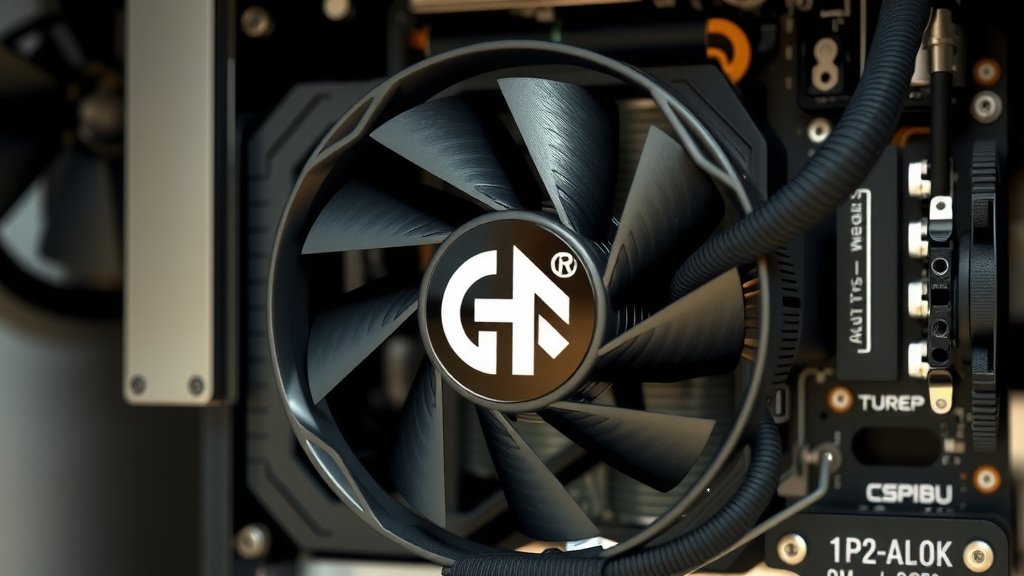
2. Physically Inspect the Fan
With your PC completely powered off and unplugged, you can take a quick look at the fan blades. Sometimes, a cable might have slipped and is obstructing the fan’s path. Gently try to spin the fan blades by hand (make sure there’s no power connected!). If it feels stiff, grinds, or doesn’t spin freely, there might be a mechanical issue.
Also, check for excessive dust buildup. While dust alone might not stop a fan from spinning, a very thick layer can sometimes impede its movement or contribute to overheating, which could indirectly affect fan behavior. A can of compressed air is your best friend here.
3. Test the Fan with Software (If Comfortable)
Using your GPU’s software utility, you can often manually set the fan speed. Try setting it to a higher percentage, like 50% or 70%, while your GPU is idle. If the fan starts spinning at these higher speeds, it suggests the fan motor itself is likely working.
This test helps determine if the issue is with the fan hardware or the automatic control system. If the fan spins when manually controlled but not automatically, the problem likely lies with the temperature sensors or the GPU’s firmware.
4. Consider the Power Supply
While less common, an insufficient or failing power supply unit (PSU) could potentially affect how GPUs function, including their fans. If your PSU can’t provide stable power, components might not operate correctly. This is usually indicated by more widespread system instability, but it’s worth keeping in mind if other checks reveal nothing.
What to Do If Your Fan Is Truly Broken
If you’ve gone through these steps and confirmed that your GPU fan is not spinning even under load, and you’re experiencing overheating, it’s time for a repair or replacement.
If your GPU is still under warranty, contact the manufacturer. They will guide you through the RMA (Return Merchandise Authorization) process. If it’s out of warranty, you have a couple of options:
| Option | Description | Considerations |
|---|---|---|
| Fan Replacement | You can purchase replacement fans specifically designed for your GPU model and install them yourself. | Requires some technical skill and finding the exact fan model. Many tutorials exist online. |
| Professional Repair | Take your GPU to a computer repair shop that specializes in component-level repairs. | Can be costly, and turnaround time may vary. Ensure they have experience with GPUs. |
| GPU Cooler Replacement | Replace the entire heatsink and fan assembly with an aftermarket cooler. | A more involved process, but can sometimes offer better cooling performance. Requires compatibility checks. |
Remember, a GPU fan that doesn’t spin can lead to serious hardware damage if left unaddressed. It’s best to tackle the issue promptly.
Quick Checklist: Is Your GPU Fan Working Correctly?
Here’s a simple way to summarize your checks:
- Confirm Zero RPM Mode: Is your GPU idle or under light load? It’s normal for the fan not to spin.
- Monitor Temperatures: Use software to check GPU temps during gaming. Are they staying below 85°C?
- Check Fan Settings: Is your GPU software set to “auto” or “performance” fan control?
- Listen for Activation: Does the fan spin up when you start a demanding game or task?
- Inspect Fan Blades: Is there any visible obstruction or damage to the fan?
- Manual Fan Test: Does the fan spin when you manually set a high speed in software?
Conclusion
It’s reassuring to know that your GPU fan often stays still because it’s working smarter, not harder, thanks to zero RPM mode. This feature keeps things quiet and cool during light tasks, only spinning up when your GPU truly needs the help during demanding activities. If you suspect a problem, always check your GPU software settings first and monitor your temperatures under load. Should you confirm a malfunction, addressing it promptly—whether through warranty, repair, or replacement—is key to preventing serious hardware damage. Your GPU is a powerful component; keeping its cooling system in check is vital for its longevity and your gaming experience.
Frequently Asked Questions
My GPU fan never spins, even when I play games. Is this normal?
If your GPU temperature is staying below 80-85°C even during gaming, it might still be operating within its normal silent range. However, if you see temperatures climbing higher or experience performance issues, it’s a sign something is wrong. Use monitoring software to confirm your GPU’s actual temperature.
How do I know if my GPU fan is broken or just in zero RPM mode?
The easiest way to check is to use GPU monitoring software. When your GPU is idle or doing light tasks, the fan should not spin (zero RPM mode). When you launch a demanding game, you should hear and see the fan start spinning to cool the GPU down. If it doesn’t spin up under load, that’s a concern.
Can I force my GPU fan to spin if it’s stuck in zero RPM mode?
Yes, you can usually manually set your GPU fan speed using manufacturer-provided software like MSI Afterburner, GeForce Experience, or AMD Adrenalin. Try setting the fan speed to a higher percentage (e.g., 50-70%) to see if it spins. This can help you test if the fan motor itself is functional.
What happens if my GPU fan fails completely?
If your GPU fan fails, your graphics card will overheat quickly under load. This can lead to system instability, such as sudden shutdowns or crashes, visual artifacts on your screen, and severe performance drops. Prolonged overheating can cause permanent damage to your GPU.
Is it safe to replace my GPU fan myself?
Replacing a GPU fan can be a manageable DIY project if you’re comfortable working inside a computer. You’ll need to identify the exact fan model for your specific GPU and follow a detailed guide or tutorial. If you’re not confident, professional repair is a safer option.